Product · New
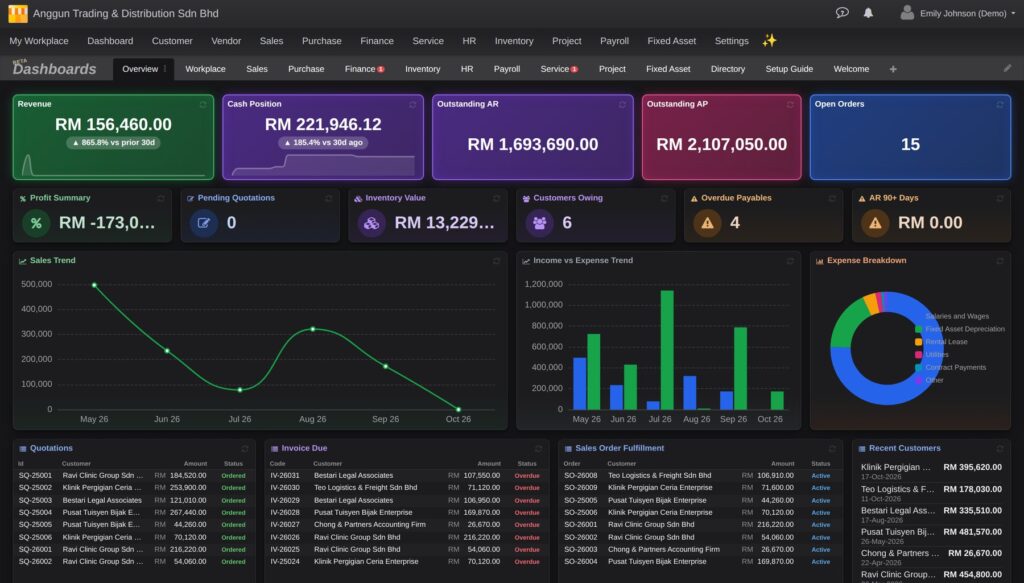
Dark mode is here, and we didn’t stop at turning white into black. We built it like the hi-fi gear and car stereos of the eighties: smoked panels, thin bright lines, and keys that light up from behind when you touch them.
Why we didn’t just invert the colours
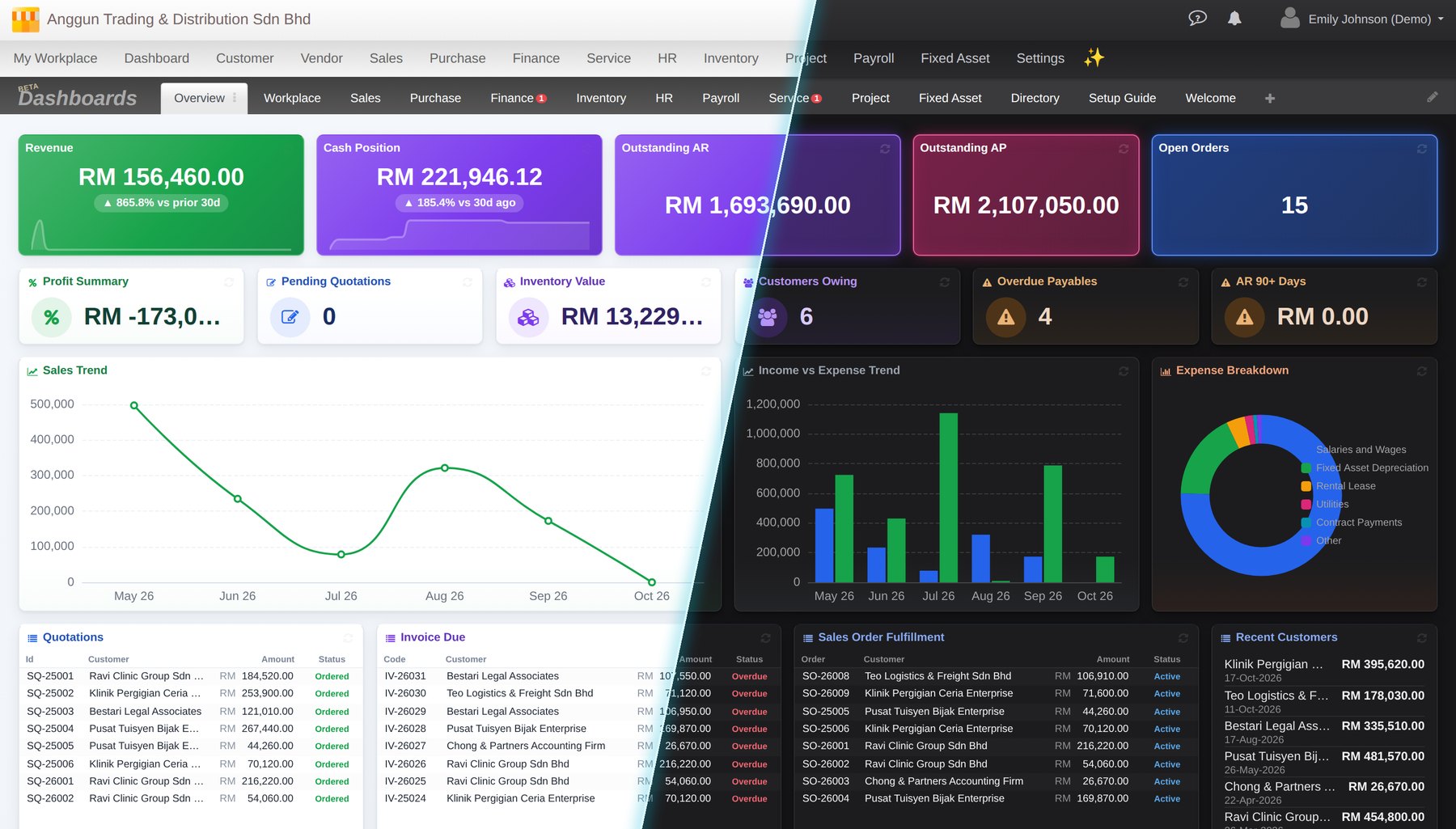
Most dark modes are a colour swap. That works on a simple settings page. It falls apart on the screens you actually work on all day: a list of two hundred invoices, a record with forty line items, a dashboard with eight charts and a dozen numbers that all matter. Flip those to black and the structure goes muddy. Rows blur together, totals stop standing out, and status colours that were obvious in light become hard to read.
So we did it the slow way. Screen by screen, area by area: the page itself, then tables, then records, the dashboard, the Planner, navigation, reports, and finally the buttons. Every round was captured, checked for contrast text by text, and reviewed before the next one started. More than a dozen rounds later, there are no bright white islands left in the office, and no text that is harder to read in dark than it is in light.
The inspiration: before everything became one sheet of glass
Think back to the gear on a shelf before every device turned into a backlit LCD rectangle. An amplifier with a row of keys you could feel click. A tape deck with a smoked window. A car radio at night, its buttons glowing softly so you could find them without looking. Those things had character. They were calm when you left them alone and came alive when you reached for them.
That is the feeling we designed toward: modern software with an analog soul. Three rules came out of it:
- Thin lines, not heavy boxes. Structure comes from fine hairlines and quiet steps of grey, so a dense screen stays organised without feeling caged.
- Glow only where something is alive. Nothing glows at rest. Light appears when you hover, press, or switch something on, the way a backlit key answers your finger.
- Tinted glass over flat paint. Colour sits inside surfaces like light behind smoked acrylic, rather than being painted on top.
A dashboard that glows like a front panel

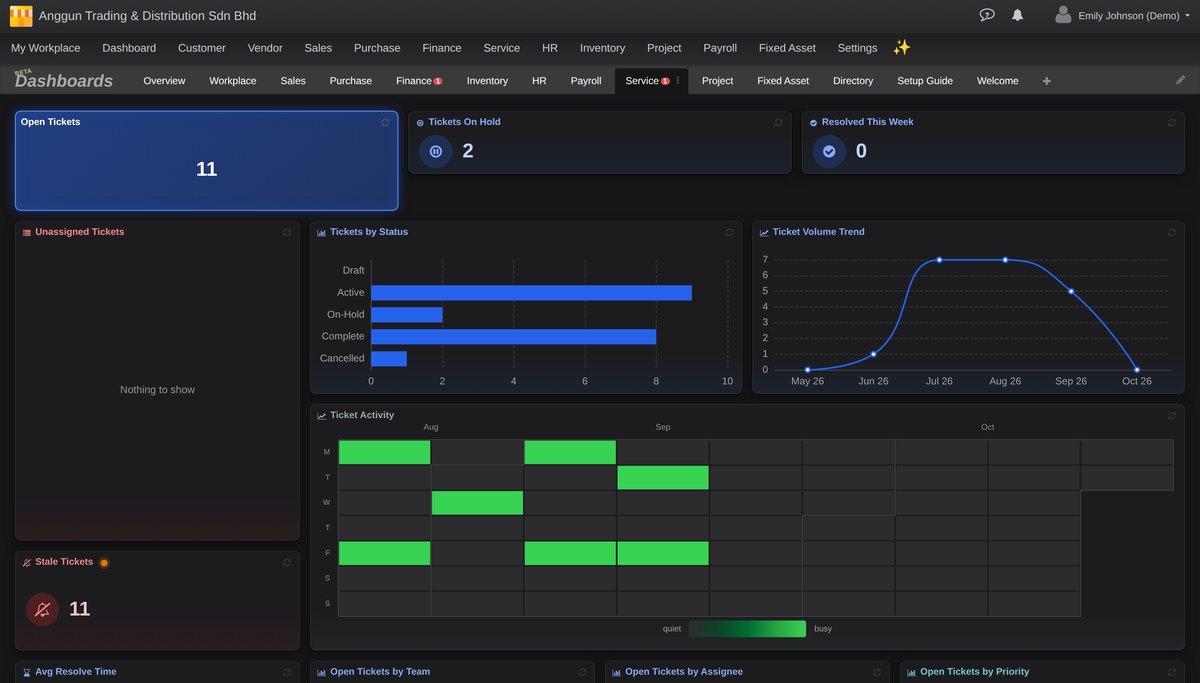
The dashboard is where the idea shows most. The headline tiles are tinted like backlit glass: a deep wash of their colour, a fine bright edge, and a soft glow that spills just past the border, like a lit panel in a dark room. Your own widget colours carry over, so a dashboard you arranged in light still reads as yours in dark.
Charts switch with you. Lines, bars and labels re-theme the moment the mode changes, with no reload, so a chart never sits as a white box in a dark page.
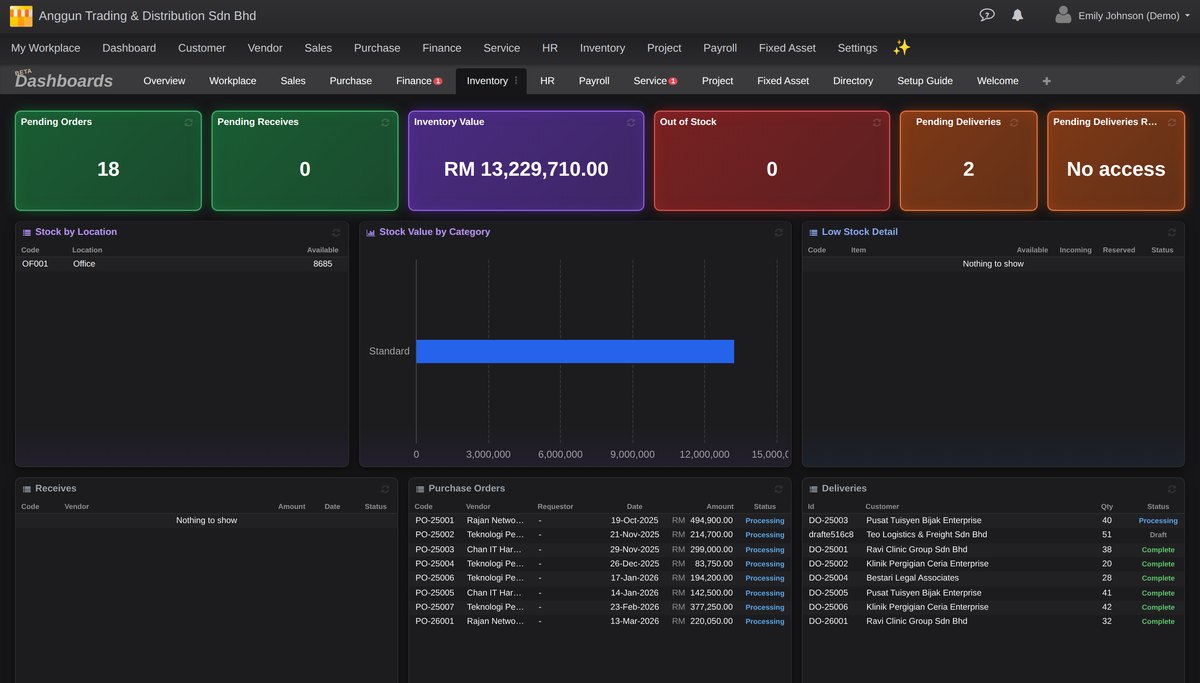
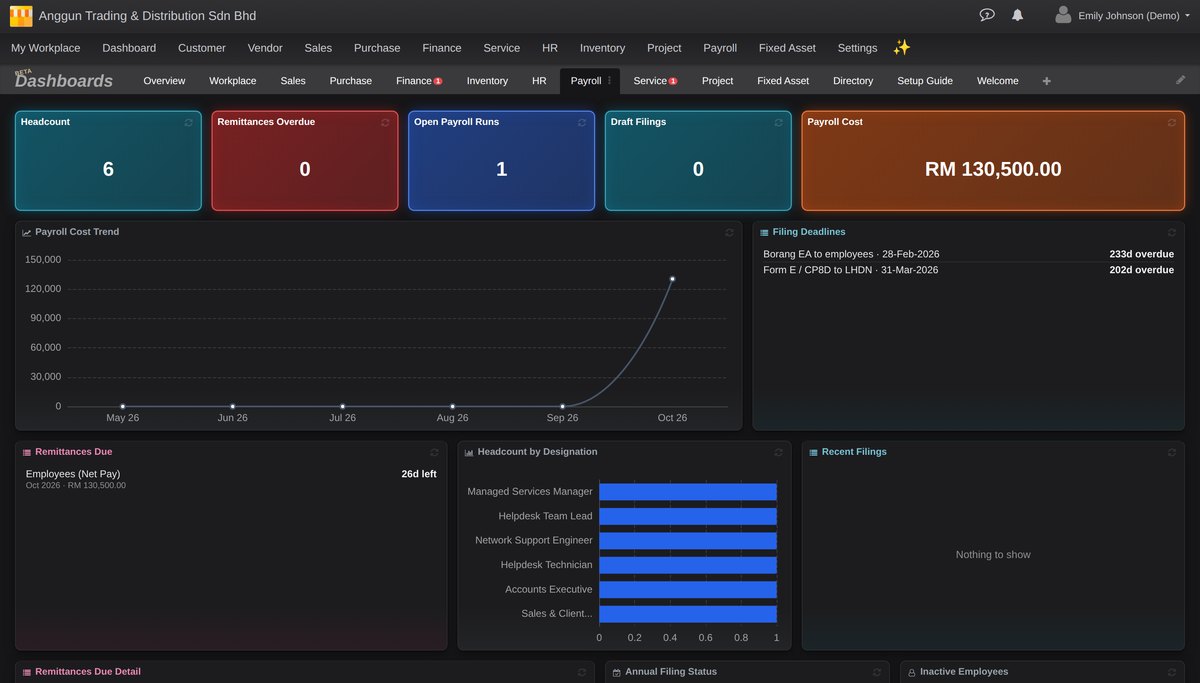
Every business area has its own dashboard tab, and every one of them comes across in dark: stock and deliveries, payroll costs and filing deadlines, service tickets with their weekly activity heatmap.
Keys you will want to press
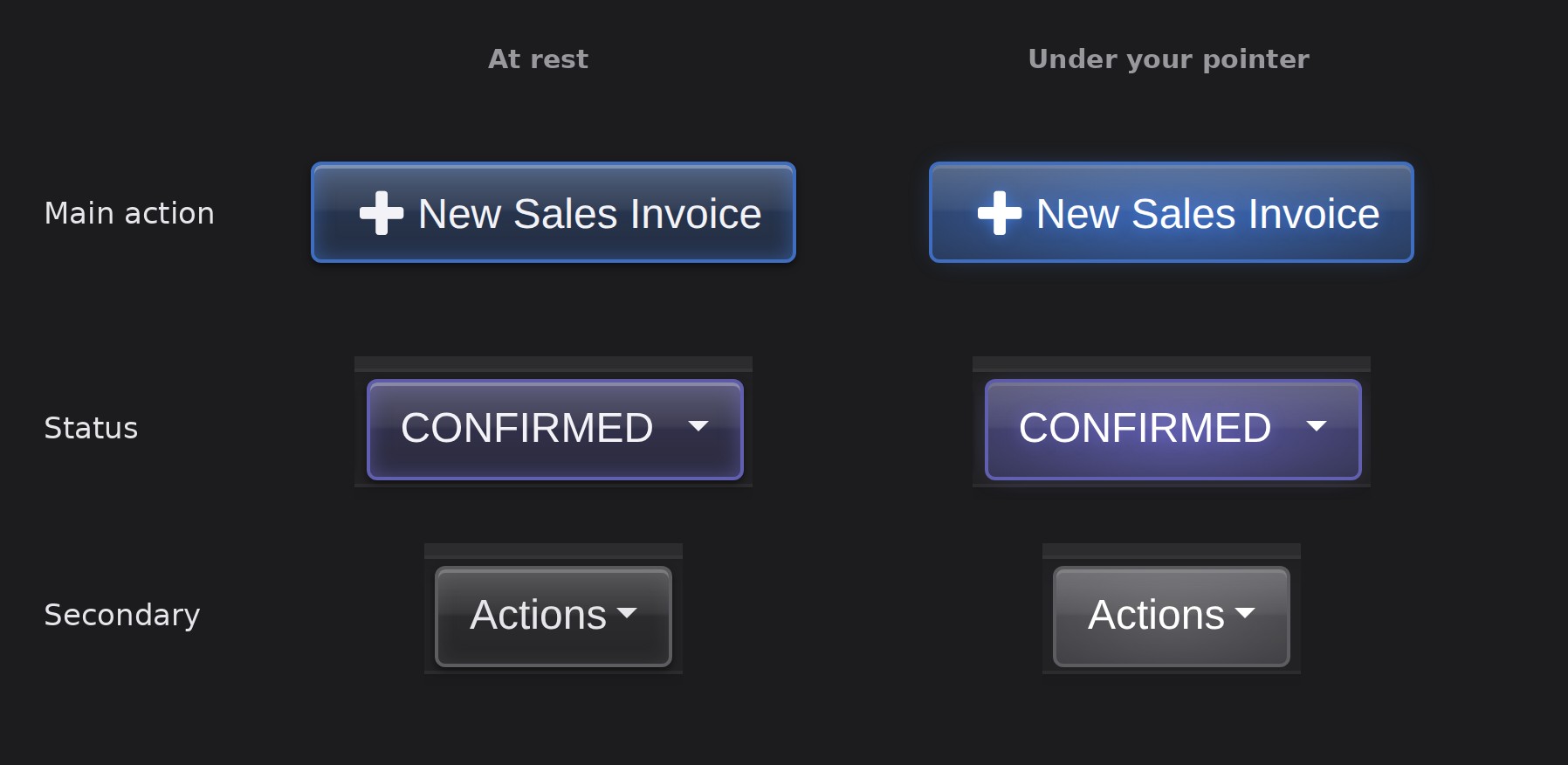
Buttons were the hardest part to get right, and the most fun. Each one is modelled on a translucent hi-fi key: at rest it is calm, a coloured legend in a dark key with a faint hint of light at the rim. Hover over it and it lights from behind. Press it and it sinks. The main action on a screen stands apart from the quieter outline keys around it, so your eye finds the right button first.
Made for screens full of information
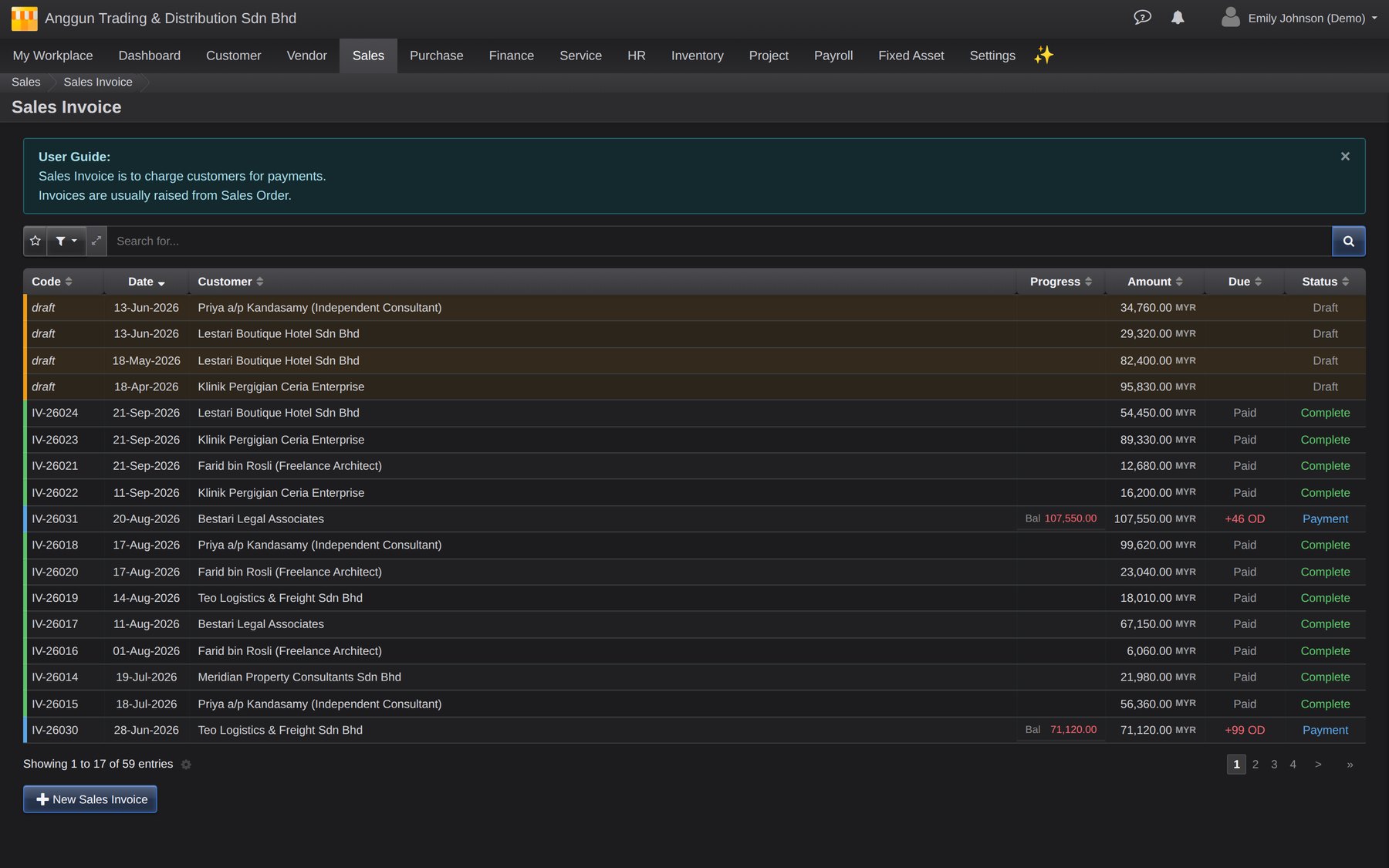
Cloudby is a working tool, and most of its screens are dense on purpose. Dark mode treats them with care. Alternate rows are separated by the faintest stripe, enough to guide your eye along a long row without adding noise. The row under your pointer lifts gently, the selected row stands out clearly, and status words keep their meaning in colour while staying readable.
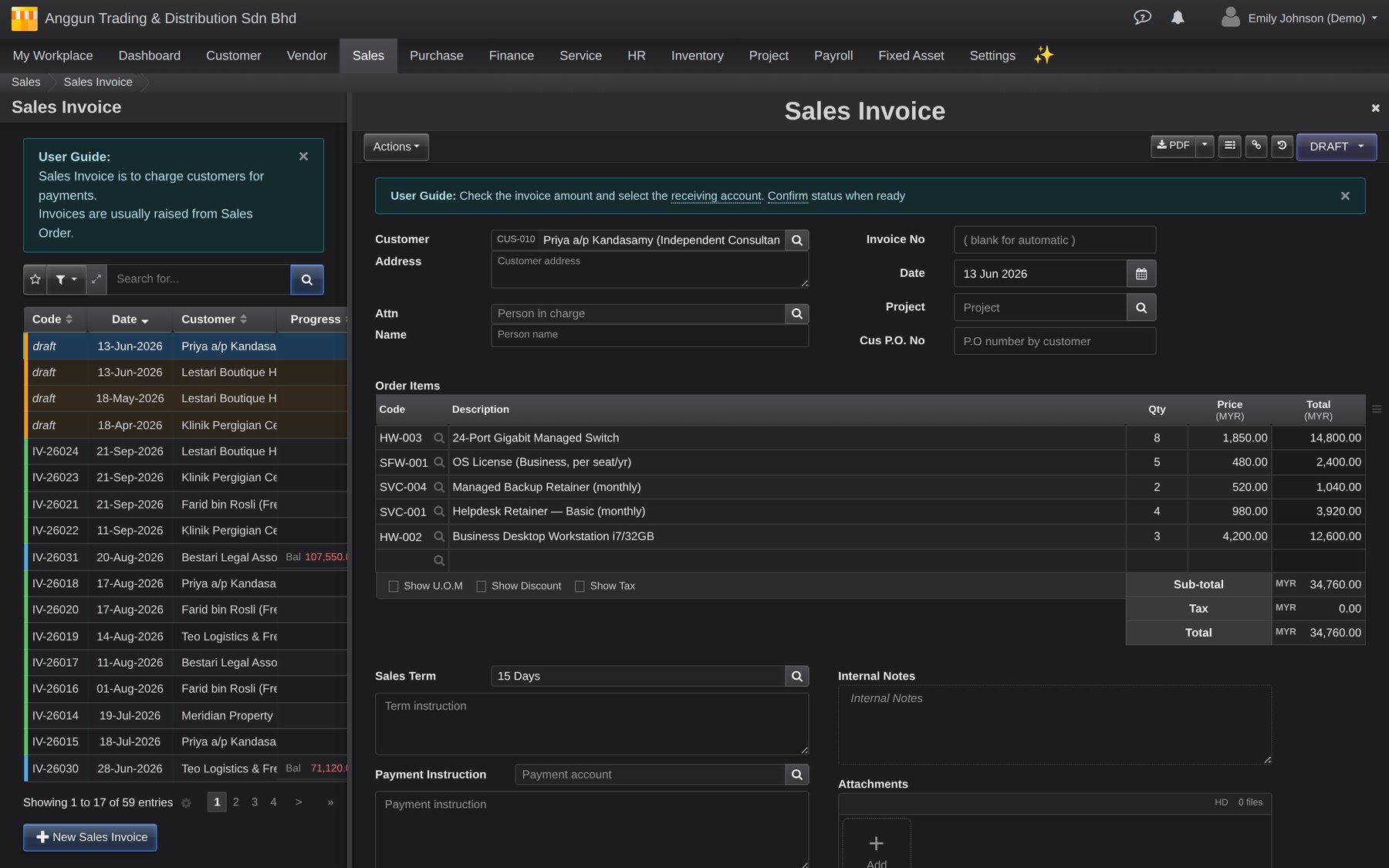
Inside a record, the line-item grid, totals, attachments and history all follow the same rules. Report headings and totals rows sit on calm dark bands with fine borders instead of glaring white ones, and the date picker, menus and pop-ups open dark too.
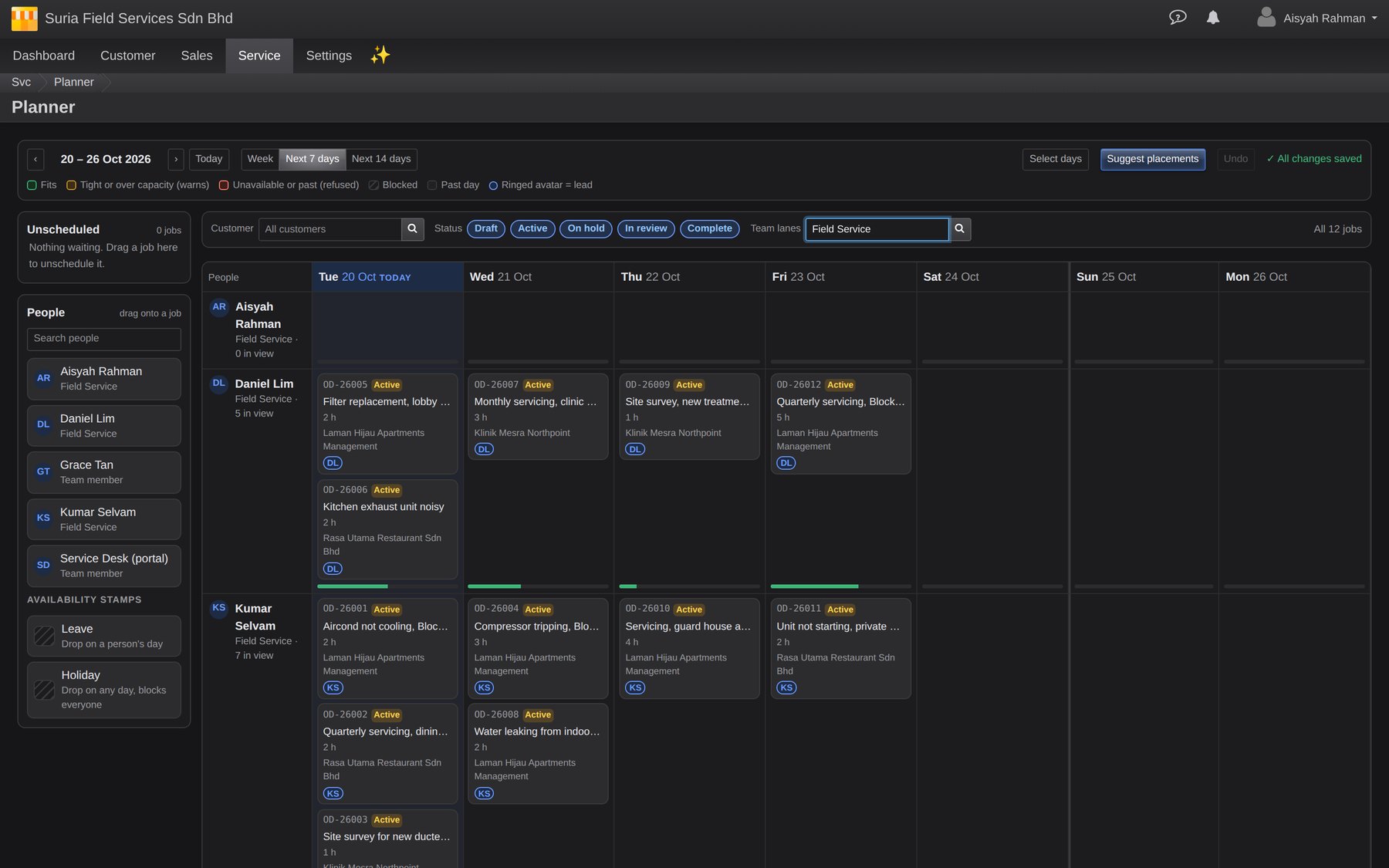
Even the Planner, one of the busiest screens in Cloudby, with crew lanes, jobs and each day’s load side by side, comes across whole. Every lane, job card and capacity marker stays easy to tell apart.
Out in the field, too
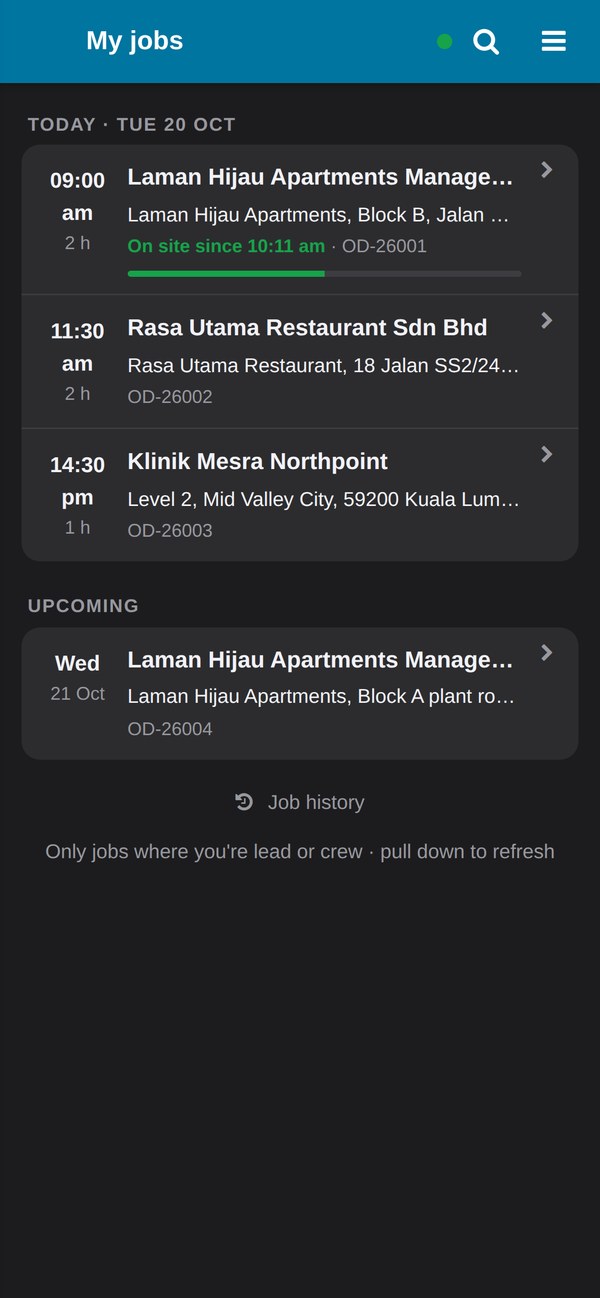
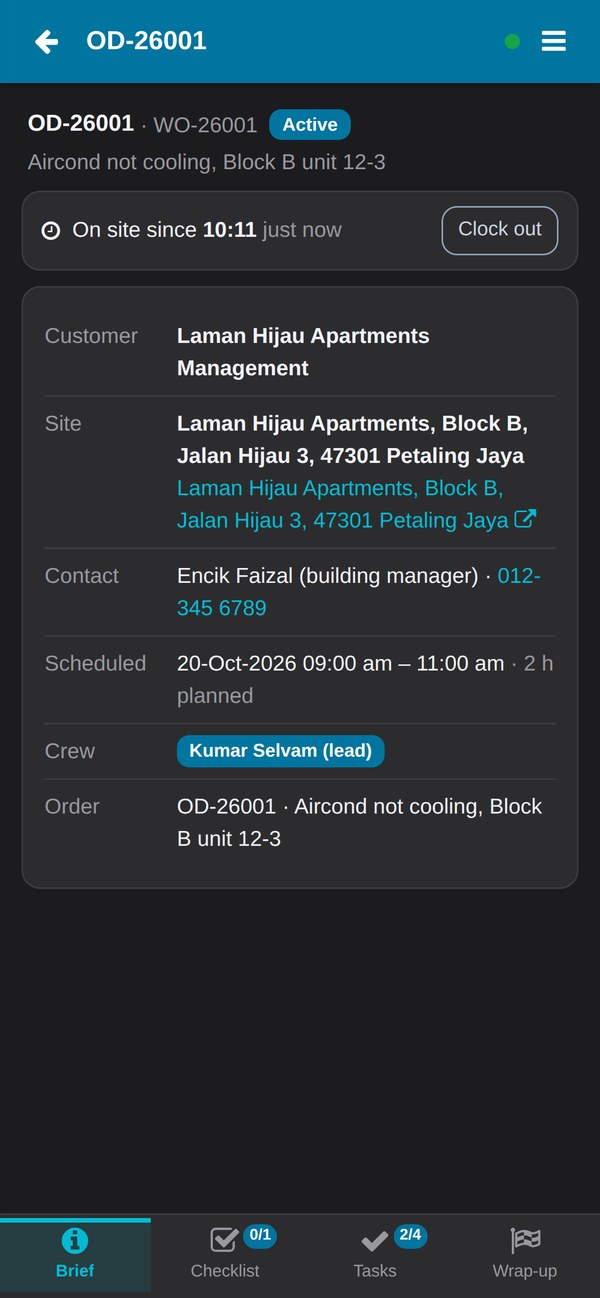
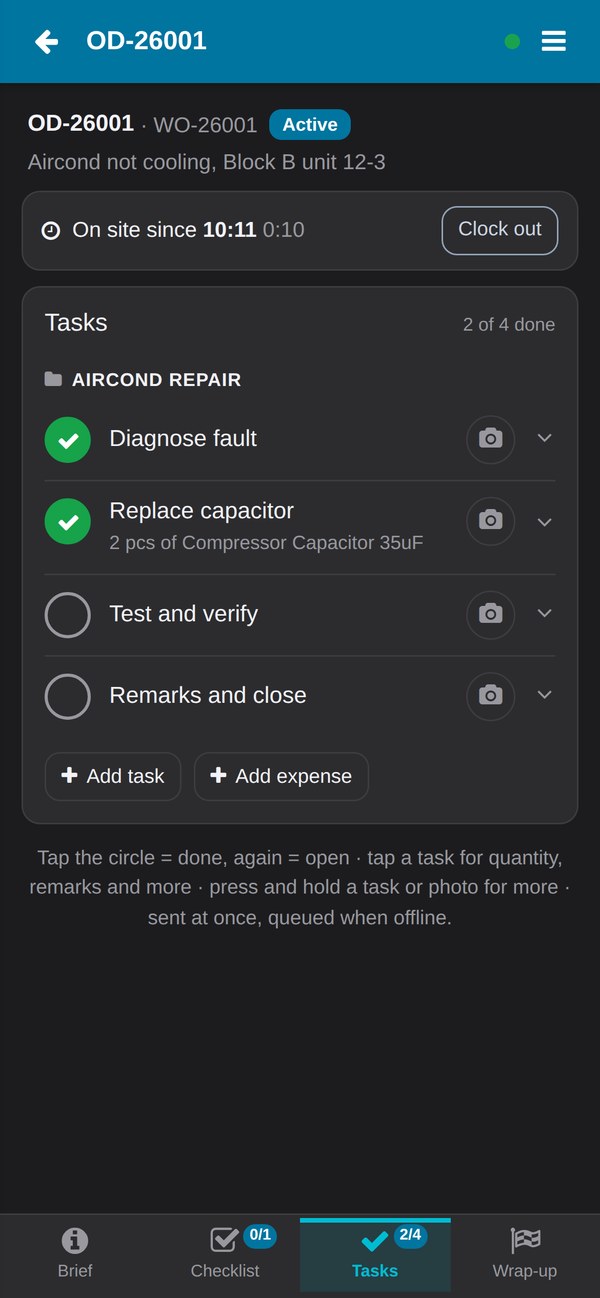
The Service Field app has had a dark mode since day one, and it now matches the office. It follows your phone’s light or dark setting automatically, so a technician checking today’s jobs before dawn or in a dim plant room isn’t blinded by a white screen. We kept it deliberately flat and simple: on site, clarity matters more than effects.
Your light mode didn’t change
If you prefer light, nothing moves. Dark mode is a separate layer laid on top, and every screen in light was checked pixel by pixel against how it looked before. Printouts and PDFs always stay light, so your invoices and quotations look exactly the same on paper, whatever mode you work in.
How to switch it on
- Open My Profile and find the Appearance card.
- Choose Dark, Light, or Match device to follow your computer’s own setting, so Cloudby turns dark in the evening if your computer does.
- The change happens at once and is remembered on that computer.
- On the Service Field app, there is nothing to do: it follows your phone.
Learn more
See the release note on the Cloudby Hub.